Before you start
- An enabled customer account and enabled products.
- Authority to quote the negotiated amounts and finalize the offer.
- An open, non-voided quote for line or note edits. A finalized basket is not an editable draft.
Open in your admin application
Use your installation’s admin address with one of these routes. Replace {id} with the actual record identifier.
/quotes/quote-insert/quote-edit?BasketID={id}/quote?BasketID={id}/quote-print?BasketID={id}/basket-checkout?BasketID={id}Create or resume the customer’s quote
Select the account
Open
/quote-insert. In Account search by account name and select a result. Typing text alone does not select an AccountID; Continue to Quote remains disabled until a valid account is selected.Continue to Quote
Choose Continue to Quote. If the account already has an open quote, it is resumed instead of creating a second one. The editor opens at
/quote-edit?BasketID={id}. Check account name and quote number before editing.
Build the offer
Find the product
Use Search products by name or code.... Select the result and check its Code, name and description. Only enabled products appear in the lookup.
Set quantity and price
Enter Qty greater than zero and a nonnegative Unit Price. Add a line note if needed, then choose Add. Verify the saved row and totals; repeat for other products.
Edit existing lines
Adjust quantity, unit price or the line note on the open quote. These controls save through quote line operations. Review the returned totals after each change, especially where discounts and tax are involved.
Save document notes
Enter overall Notes and choose Save Notes. This is separate from line updates. If Manual Discount is available, enter the amount and optional discount note, then verify the totals.
Review the complete document
Check Subtotal, Discount, Tax, Shipping and Total. Use Review or Print for the customer-facing representation. Confirm scope and commercial approval before finalizing.
Convert and continue checkout
Convert to Order
Choose Convert to Order. The system finalizes the same BasketID; it does not create a second invoice document. An empty quote cannot be converted.
Verify finalization
Confirm the finalized state and that editing is no longer offered for the open-quote controls. Use Continue Checkout to open the payment workspace for that BasketID. Conversion is not payment.
Follow the payment procedure
Check balance and payment environment, then complete the configured checkout. Review payment and fulfillment separately.
Product proof
These Phase 1 frames are capture specifications, not application screenshots or runtime evidence.
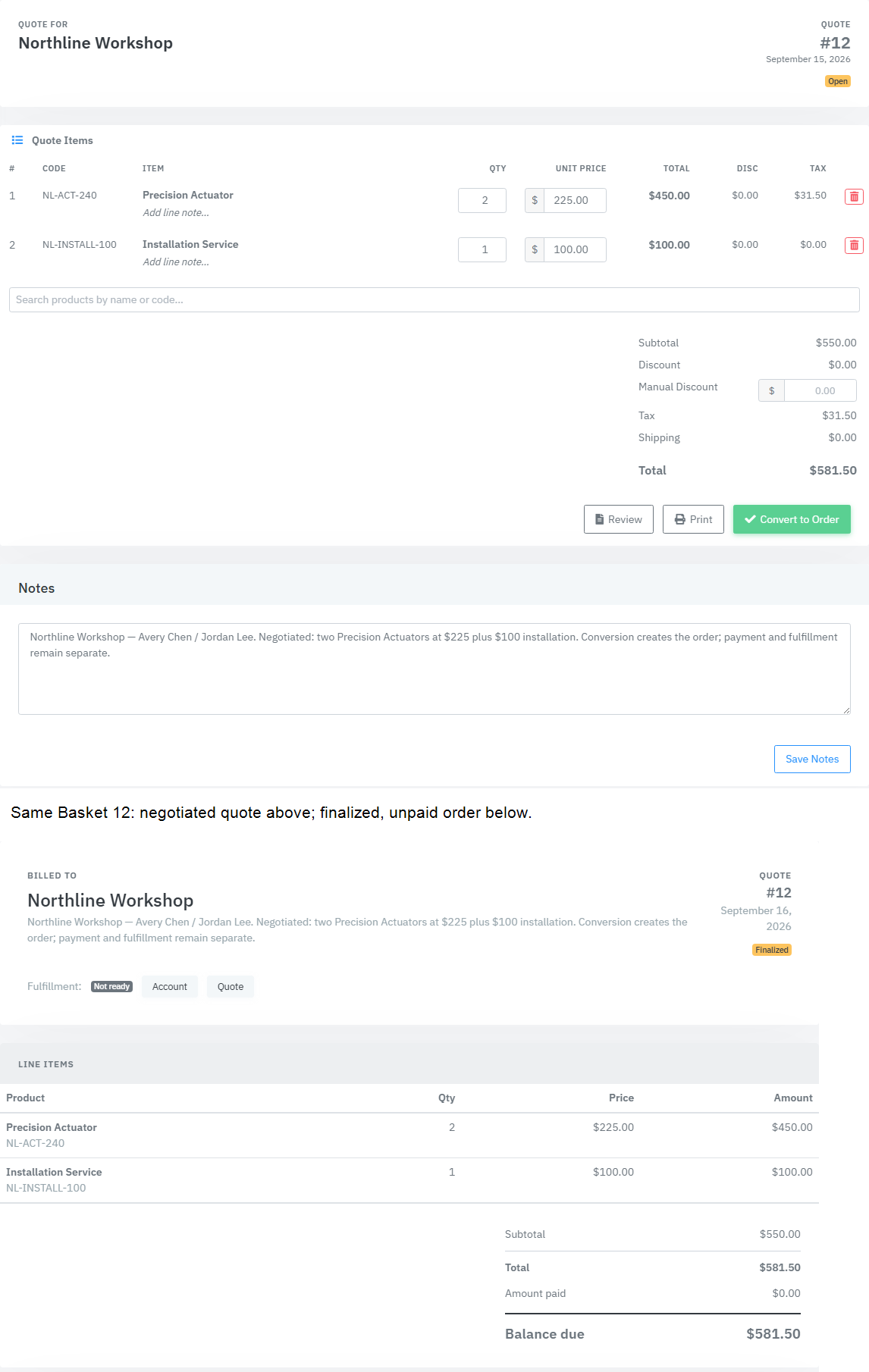
Fields & records
| Field / record | Meaning or use |
|---|---|
| BasketID | Identity of the quote and resulting order. Older references may call this a quote identifier, but current routes use BasketID. |
| Qty / Unit Price | Positive quantity, nonnegative price. An explicit line price is an offer-specific override. |
| Save Notes | Persists overall quote notes; not a substitute for saving line changes. |
| Convert to Order | Finalizes a nonempty quote; no automatic charge and no new InvoiceID. |
Verify the result
- The selected account and all saved lines match the approved offer.
- Reopen Review and verify notes/totals before conversion.
- The same BasketID is present on quote editor and checkout after conversion.
Troubleshooting
| What you see | What to check or do |
|---|---|
| Continue button disabled | Choose an actual account result, not just a typed name. |
| A previous quote reopened | Expected when that account already has an open quote. Check it before adding lines. |
| Only open quotes can be edited | Check finalized, deleted or voided state; do not force edits to a committed basket. |
| Convert is not allowed for an empty quote | Add at least one valid product line before converting. |
Version & scope
Procedure checked against current Feeding Frenzy forms and services. Source verification is not a claim that a live payment, message, customer transaction or full operator run occurred.
Public guides describe shared controls, records and configuration boundaries using fictional data. Tenant URLs, credentials, customer records, provider identifiers and installation-only procedures belong in customer-controlled documentation and are excluded from public pages and search.
- Version
- 2.0.0
- Change source
- Current Feeding Frenzy forms/services plus reconciled Wiki topics
- Feedback key
guide:quote-order
Feedback records only the page, guide ID and yes/no choice. It never records documentation search text.
Implementation references (3)
FeedingFrenzy.Admin/wwwroot/kScripts/Quotes/Quote.Insert.ks.htmlFeedingFrenzy.Admin/wwwroot/kScripts/Quotes/Quote.Edit.ks.htmlFeedingFrenzy.Commerce/Baskets/Quotes.cs