Before you start
- An agreed unique Code / SKU and primary selling price.
- A supported type: Physical Product, Digital Download or Subscription.
- For an enabled subscription, an enabled billing schedule with matching amount and frequency.
Open in your admin application
Use your installation’s admin address with one of these routes. Replace {id} with the actual record identifier.
/products/product-insert/product-edit?ProductID={id}Create the product
Enter Basic information
Open
/product-insert. Fill Product name and Code / SKU, then Description. Keep the code stable for internal references and reporting.Choose Classification
Select Product type and, if applicable, Primary category. The type determines the applicable billing and fulfillment capabilities. Additional categories can be added in the full workspace.
Set Selling details
Enter Initial price and set Taxable to use configured tax behavior. Decide whether this is ready for use or still a draft. The creation action determines saved availability: Create Product enables it; Save as Draft keeps it disabled.
Configure recurring terms when needed
For Subscription select Subscription billing schedule and inspect Billing frequency. The enabled schedule, product price and interval/unit must agree. Selecting a schedule copies its authoritative amount and cadence.
Create and inspect
Choose Create Product when ready, or Save as Draft for incomplete configuration. The full workspace opens for pricing, organization, fulfillment and media. Confirm the saved identity and Enabled state.
Complete the workspace
Maintain price and organization
Overview holds Primary price. Prices holds additional price records. Organization contains Categories and Vendors with Add Category and Add Vendor links. Read the dedicated pricing guide before assuming another price type automatically changes quote pricing.
Add real product media
In Media use Choose Image to upload JPEG, PNG or WebP, up to 10 MB per image. There are four image slots; the first is primary. Save the Product after uploading or removing an image so the media change persists.
Inspect fulfillment requirements
Fulfillment exposes capabilities from the selected type. Manage inventory opens stock configuration where applicable. Shipping, Digital delivery and License and usage currently identify integration/configuration work; these sections do not provide a universal carrier, download or licensing setup wizard.
Product proof
These Phase 1 frames are capture specifications, not application screenshots or runtime evidence.
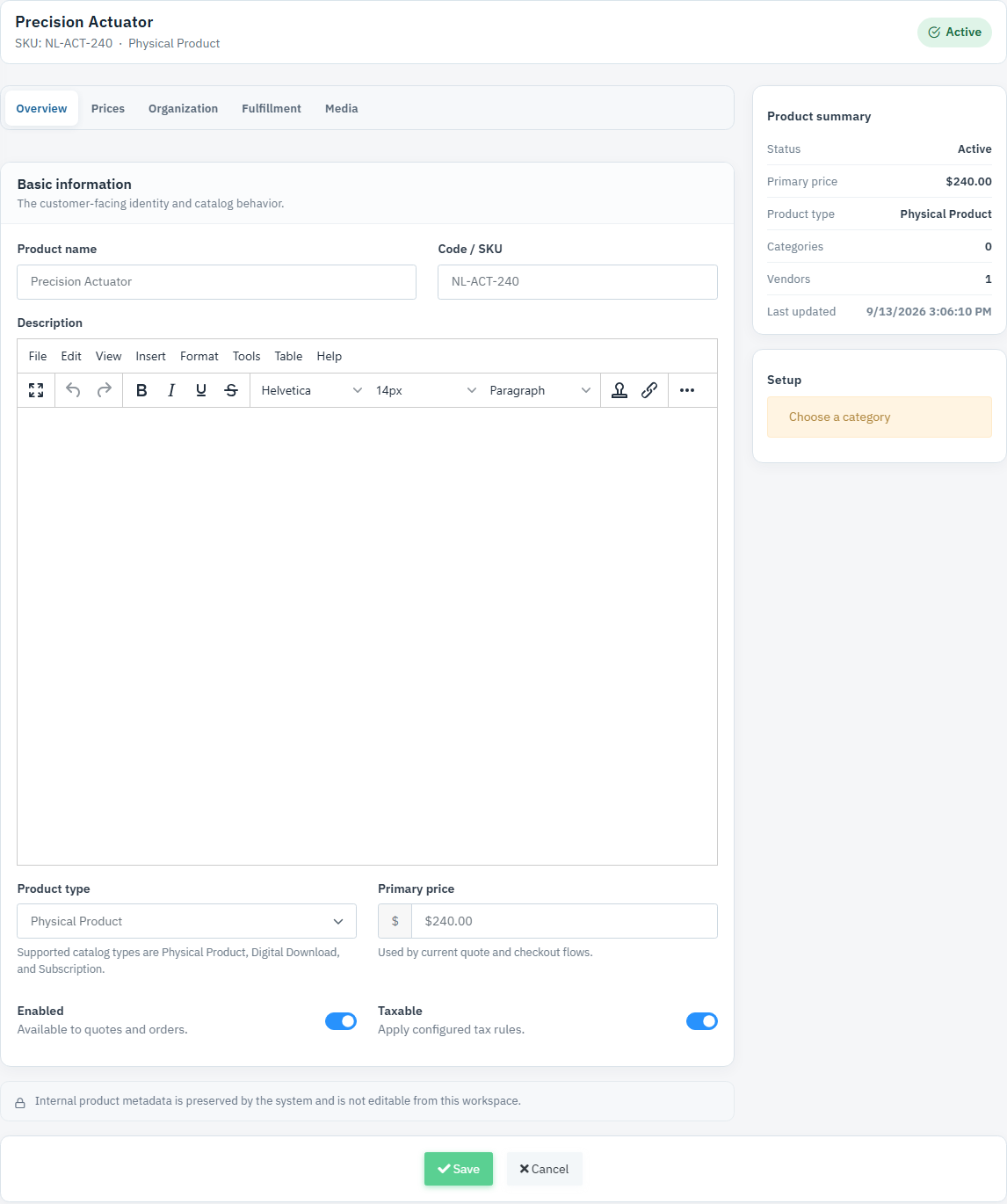
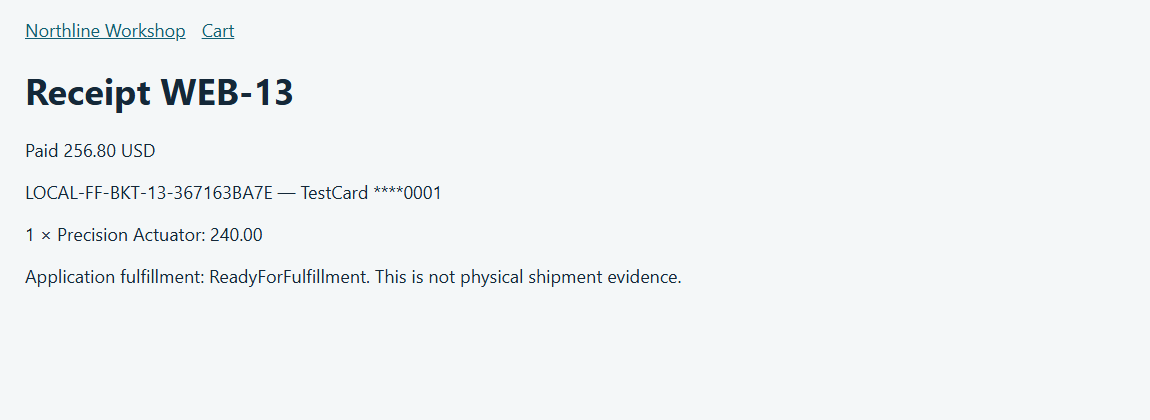
Fields & records
| Field / record | Meaning or use |
|---|---|
| Product name / Code / SKU | Required identity fields, up to 255 characters. |
| Primary price | Price consumed by current quote lookups; individual quote lines can override it. |
| Enabled | Controls availability in enabled-product quote lookup. |
| Taxable | Uses configured tax rules; does not itself define a jurisdiction or rate. |
| Subscription billing schedule | Amount and frequency must match the product before activation. |
Verify the result
- Reopen the workspace and verify saved fields and images.
- An enabled product appears by name or code in quote search.
- Subscription products show matching plan amount and interval/unit.
Troubleshooting
| What you see | What to check or do |
|---|---|
| Subscription will not activate | Check plan enabled state, positive amount and interval, and exact price/frequency match. |
| Image upload succeeded but disappeared | Upload is not the final save; save the Product to persist the media change. |
| No shipping/digital setup fields | Use the configured delivery integration; these workspace sections are capability indicators, not complete setup forms. |
Version & scope
Procedure checked against current Feeding Frenzy forms and services. Source verification is not a claim that a live payment, message, customer transaction or full operator run occurred.
Public guides describe shared controls, records and configuration boundaries using fictional data. Tenant URLs, credentials, customer records, provider identifiers and installation-only procedures belong in customer-controlled documentation and are excluded from public pages and search.
- Version
- 2.0.0
- Change source
- Current Feeding Frenzy forms/services plus reconciled Wiki topics
- Feedback key
guide:catalog-products
Feedback records only the page, guide ID and yes/no choice. It never records documentation search text.
Implementation references (2)
FeedingFrenzy.Admin/wwwroot/kScripts/Products/Product.Insert.ks.htmlFeedingFrenzy.Admin/wwwroot/kScripts/Products/Product.Edit.ks.html