Before you start
- Permission to insert leads and access the resulting record.
- Search company, email and phone first to avoid a second record for the same customer.
- Know the appropriate configured source and starting status.
Open in your admin application
Use your installation’s admin address with one of these routes. Replace {id} with the actual record identifier.
/leads/lead-insert/lead?LeadID={id}/lead-edit?LeadID={id}Create the record
Open Create Lead
Navigate to
/lead-insert. The form has Company Info and Primary Contact sections.Identify the company and owner
Enter Company. Select a Sales Representative, or leave None if the record should remain unassigned. Choose Priority: Hot, Warm, Normal or Cold. Normal is the initial selection.
Record qualification and attribution
Enter Opportunity Size when known. Choose Lead Status and Source from the configured lists. Source initially selects Self Generated when that source is available; replace it when a more specific source applies.
Enter the address and contact
Fill Address, Address 2, City, State and Zip Code. Under Primary Contact enter First Name, Last Name, Phone and Email. Check the phone/email formatting before saving.
Create and open the resulting lead
Choose Create, then open
/lead?LeadID={id}for the created record. Confirm the person, company, owner and source. Review any potential-duplicate warning before proceeding.Add context after creation
Use Notes → Add Note for the conversation and next action; set Follow Up Date and choose Save Note. Use Contacts → Add Contact for other people. These are related records added after the lead exists, not fields on the initial insert form.
Product proof
These Phase 1 frames are capture specifications, not application screenshots or runtime evidence.
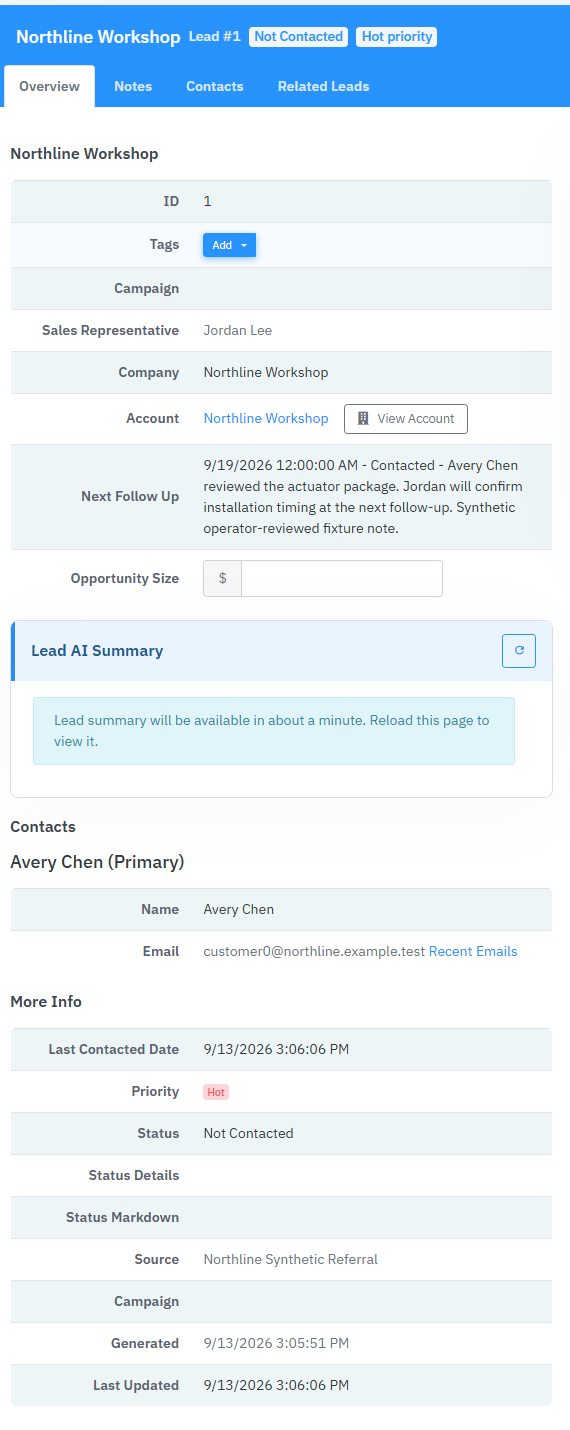
Fields & records
| Field / record | Meaning or use |
|---|---|
| Company | Organization or trading name; primary contact fields describe the person. |
| Sales Representative | Assignment, not the company account. None leaves the lead unassigned. |
| Priority | Hot = 1, Warm = 2, Normal = 3, Cold = 4 in the insert form. |
| Lead Status / Source | Configured reference values; do not replace these with free-text notes. |
| Opportunity Size | Numeric opportunity estimate; enter a value only when meaningful. |
Verify the result
- Reopen the lead and check the persisted fields, not just the success message.
- Confirm the assigned representative can find the lead in the intended queue.
- Confirm the new note and follow-up are visible on the detail record.
Troubleshooting
| What you see | What to check or do |
|---|---|
| Save reports invalid contact data | Correct the phone or email field on the form; do not discard the rest of the customer context. |
| Lead missing from My Leads | Check assignment. An unassigned lead belongs in the unassigned queue, not a representative’s personal queue. |
| Existing customer found | Edit the existing lead instead of creating another one; review duplicate relationships separately. |
Version & scope
Procedure checked against current Feeding Frenzy forms and services. Source verification is not a claim that a live payment, message, customer transaction or full operator run occurred.
Public guides describe shared controls, records and configuration boundaries using fictional data. Tenant URLs, credentials, customer records, provider identifiers and installation-only procedures belong in customer-controlled documentation and are excluded from public pages and search.
- Version
- 2.0.0
- Change source
- Current Feeding Frenzy forms/services plus reconciled Wiki topics
- Feedback key
guide:lead-context
Feedback records only the page, guide ID and yes/no choice. It never records documentation search text.
Implementation references (4)
FeedingFrenzy.Admin/wwwroot/kScripts/Leads/Lead.Insert.ks.htmlFeedingFrenzy.Admin/wwwroot/kScripts/SimpleObjectInsert.ks.htmlFeedingFrenzy.Admin/wwwroot/kScripts/Leads/Lead.Edit.ks.htmlFeedingFrenzy.Admin/wwwroot/kScripts/Leads/Lead.Details.ks.html