Before you start
- Access to the relevant lead queue. Assignment and bulk actions depend on your permissions.
- The correct representative and configured status/substatus for the intended transition.
Open in your admin application
Use your installation’s admin address with one of these routes. Replace {id} with the actual record identifier.
/leads/my-leads/unassigned-leads/lead?LeadID={id}/lead-edit?LeadID={id}Find the right record
Choose a queue
Use
/leadsfor broad lookup,/my-leadsfor your assigned work and/unassigned-leadsfor leads without an owner. Search by a known company, person, email or phone.Narrow before opening
Sort available columns, including Priority, Last Contacted and Follow Up. On the unassigned view use the Tag and Status filters; Search Filters can narrow by Source. Open the intended lead row.
Set ownership and the next action
Review before contacting
Read the current status, recent notes, contacts and Next Follow Up. An old high priority does not supersede a recent note saying the opportunity was closed.
Assign the correct owner
When authorized, open the lead edit route, select Sales Representative and save. Claim Lead and Forfeit Lead are also shown on the detail page when the applicable permission and assignment conditions allow them. Verify the owner after the operation.
Update the pipeline
Use the detail page Status selector for its configured primary-status/substatus choices. Pick the actual stage reached, not the stage you hope to reach. Some transitions run configured business actions; check the resulting status and notes.
Schedule follow-up
In Notes enter a specific next action, then set Follow Up Date. Shortcuts include Later Today, Tomorrow, Next Week and Next Month; inspect the resulting date/time. Select Save Note. A note without a date is history, not a dated reminder.
Verify the queue
Reopen the lead and check Next Follow Up. Return to the owner’s queue and find the lead. After the action, record its outcome and the next agreed date instead of leaving contradictory future reminders.
Product proof
These Phase 1 frames are capture specifications, not application screenshots or runtime evidence.
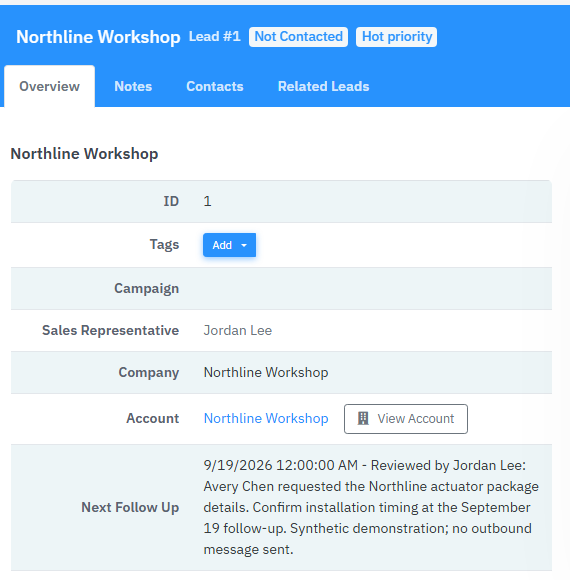
Fields & records
| Field / record | Meaning or use |
|---|---|
| Follow Up Date | Date/time on the lead note; the lead also exposes follow-up for queues. |
| Status / substatus | Configured combinations, not a universal fixed sales pipeline. |
| Priority | Urgency is separate from pipeline status and ownership. |
Verify the result
- The intended representative is displayed after saving.
- The note and Follow Up Date appear on the lead.
- The record appears in the appropriate assigned/unassigned view.
Troubleshooting
| What you see | What to check or do |
|---|---|
| No bulk controls | Check bulk-operation permission; row actions are not available to every role. |
| Unexpected queue omission | Clear filters and check owner, status and follow-up date before assuming the lead was removed. |
| Follow-up does not match the note you expected | Inspect existing dated notes and status transitions. Record one clear next action; do not create more conflicting reminders. |
Version & scope
Procedure checked against current Feeding Frenzy forms and services. Source verification is not a claim that a live payment, message, customer transaction or full operator run occurred.
Public guides describe shared controls, records and configuration boundaries using fictional data. Tenant URLs, credentials, customer records, provider identifiers and installation-only procedures belong in customer-controlled documentation and are excluded from public pages and search.
- Version
- 2.0.0
- Change source
- Current Feeding Frenzy forms/services plus reconciled Wiki topics
- Feedback key
guide:lead-work
Feedback records only the page, guide ID and yes/no choice. It never records documentation search text.
Implementation references (3)
FeedingFrenzy.Admin/wwwroot/kScripts/Leads/Lead.Edit.ks.htmlFeedingFrenzy.Admin/wwwroot/kScripts/Leads/Lead.Details.ks.htmlFeedingFrenzy.Admin/wwwroot/kScripts/LeadNotes/LeadNotesAdmin2.ks.html